Lucky Patcher APK Builder: Rebuild & Create Modified APKs Easily (2026)
Lucky Patcher APK Builder: Rebuild & Create Modified APKs Easily (2026)
One of the most powerful and underused features in Lucky Patcher is its built-in APK Builder — a tool that lets you rebuild and create customized versions of any installed Android app. Instead of applying temporary patches that may be reset after an update, the APK Builder creates a permanent, standalone APK file that includes all your customizations. In this complete 2026 guide, we walk you through exactly how to use this feature step by step.
What is the Lucky Patcher APK Builder?
The Lucky Patcher APK Builder — also called the Rebuild & Install feature — is a tool that creates a completely new, modified version of any app installed on your Android device. Rather than patching an app temporarily, this feature decompiles the app’s code, applies your chosen customizations, and then recompiles it into a brand new APK file that you can install and use permanently. New to Lucky Patcher? Read our Complete Beginners Guide
Think of it like this — standard Lucky Patcher patches work on top of an existing app. The APK Builder goes one step further by creating an entirely separate version of the app with the modifications built directly into its core. This modified APK can be installed on other Android devices, shared with others, or kept as a permanent backup of your customized version.
In 2026, the Lucky Patcher APK Builder works on most Android apps without requiring root access — making it one of the most accessible app customization tools available for Android users of all experience levels.
3 APK Build Methods in Lucky Patcher
Lucky Patcher offers three different methods for rebuilding and modifying APK files. Each method works differently and is suited to different situations:
Safe Method
Rebuilds the app without removing the original signature. Works on most apps and is the recommended starting point for beginners. Does not change the app’s certificate.
Safe Method
Rebuilds the app without removing the original signature. Works on most apps and is the recommended starting point for beginners. Does not change the app’s certificate.
Create Modified APK
Creates a standalone package with pre-applied customizations. The resulting APK file is saved to your device and can be installed independently without the original app.
How to Use Lucky Patcher APK Builder — Step by Step
Backup the Original App First
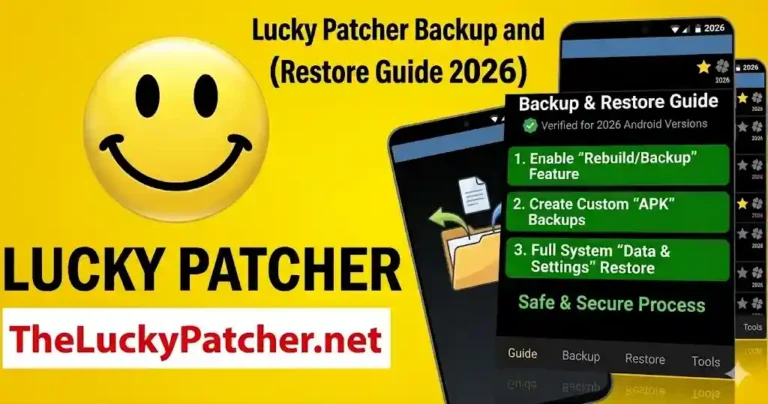
Before doing anything, create a backup of the original app using Lucky Patcher’s Backup feature. If something goes wrong during the rebuild process, you can instantly restore the original version without losing any data.
Open Lucky Patcher and Find Your App
Launch Lucky Patcher and wait for it to finish scanning all installed apps. Find the app you want to rebuild in the list — you can use the search function to locate it quickly by name. Discover 15+ hidden tools most users never find → Toolbox Guide
Tap the App and Open Patch Menu
Tap on the app to open its options menu. Select Open Patch Menu from the list of available actions. opens the full customization panel for that specific app.
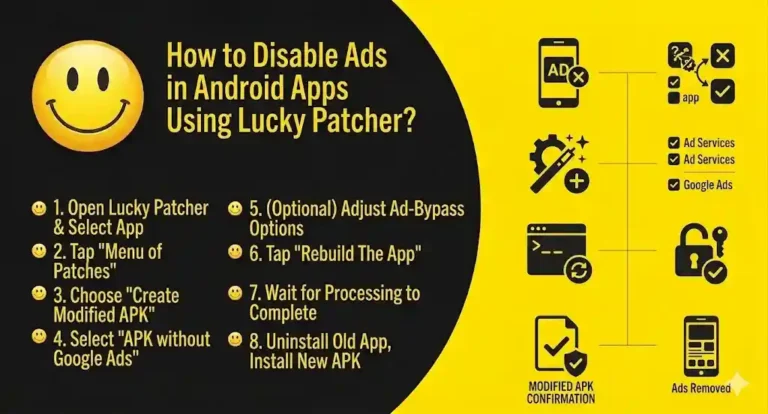
Select “Create Modified APK”
From the Patch Menu, tap Create Modified APK. A pop-up will appear with several build options — choose the type of modification you want to apply, such as removing ads, removing Google Ads, or other available patch options for that app.
Choose Your Build Method
Select your preferred build method: Safe Method for beginners or Rebuild & Install for more comprehensive modifications. Check any additional options you need, such as removing integrity checks if the app has extra security verification.
Tap “Rebuild the Application”
Tap Rebuild the Application and wait for the process to complete. Depending on the app’s size and your device’s processing power, this can take anywhere from 30 seconds to a few minutes. Do not close Lucky Patcher during this process.
Install the Modified APK
Once the rebuild is complete, scroll down and tap Rebuild & Install. Lucky Patcher will ask you to uninstall the original app first—confirm this, then install your modified version. Does Lucky Patcher slow your phone? Get the honest answer
Result: Your modified APK is now installed as a standalone app on your device. The customizations are permanently built into the app — they will not reset when you restart your phone or close Lucky Patcher.
What Can You Do with a Modified APK?
Once you create a modified APK using Lucky Patcher, you have several practical uses for the file:
- Remove ads permanently — the modified version runs without any advertisements on every launch
- Share with other devices — copy the APK file to other Android phones and install the same modified version
- Keep as a permanent backup — even if the original app updates and breaks a patch, your modified APK stays on your device unchanged
- Manage permissions permanently — the modified APK launches with your chosen permission settings already applied from the start
- Run alongside original — in some cases, the modified APK has a different package name, allowing it to coexist with the original app
Pro Tips for Lucky Patcher APK Builder
Always Back Up Before Rebuilding
It has been said enough — always use Lucky Patcher’s built-in Backup feature before rebuilding any app. If the rebuilt version crashes or behaves unexpectedly, restoring from backup takes seconds and gets you back to a working app immediately.
Check Available Storage Before Building
The rebuild process creates temporary files during decompilation. For large apps, this can temporarily use 2 to 3 times the app’s original file size in storage space. Make sure you have at least 1 GB of free Storage before rebuilding large apps or games.
Try Safe Method Before Rebuild & Install
Always attempt the Safe Method first. It preserves the original app’s signature, so the rebuilt app is less likely to trigger security warnings or fail installation checks. Only switch to Rebuild & Install if the Safe Method does not achieve the result you need. Download the latest Lucky Patcher v12.10.4 — free.
Test Immediately After Installation
After installing your modified APK, open it immediately and test the specific feature you modified. Some modifications only become visible after closing and reopening the app. If the app crashes on first launch, restore from backup and try a different build method.