Lucky Patcher Features Explained for Beginners 2026 — Complete Guide
Just downloaded Lucky Patcher and am not sure what each feature does. You are in the right place. In this complete beginner guide for 2026, we explain every Lucky Patcher feature in simple, easy-to-understand language — no technical knowledge required. By the end of this guide, you will know exactly what Lucky Patcher can do and how each tool can benefit you on your Android device.
What is Lucky Patcher — Simple Explanation for Beginners
Lucky Patcher is a free Android tool that gives you more control over the apps installed on your phone. Think of it as a toolbox for your Android apps — it lets you view, manage, modify, and organize your applications in ways that the standard Android settings do not allow.
Developer ChelpuS created the app and has been available on Android since 2012. Over the years, it has grown into one of the most comprehensive app management tools available — with the latest version, v12.10.4 in 2026, offering improved compatibility with Android 14, 15, and 16.
What makes Lucky Patcher stand out from other Android tools is the sheer number of features it offers in a single free application. From removing ads and managing permissions to creating app backups and applying custom patches — Lucky Patcher does it all without requiring a subscription or payment of any kind.
Good to know for beginners: You do NOT need root access to use most Lucky Patcher features. The app works on standard non-rooted Android devices — though some advanced features work better with root access enabled.
Feature 1 — Ad Removal
Ad Removal Feature — What It Does
The ad removal feature is the most popular Lucky Patcher tool among beginners. It removes banner, pop-up, interstitial, and video ads from Android apps and games. Once you apply this feature to an app, it runs completely ad-free every time you open it.
This works by modifying the app’s code to turn off its connection to ad networks. Instead of seeing advertisements while using an app, you get a clean, uninterrupted experience without any distractions.
Beginner Tip: Ad removal works best on offline apps and games. Apps that require an internet connection may reload ads from their servers even after patching.
Feature 2 — Permission Manager
Permission Manager — What It Does
Every Android app requests certain permissions when you install it — access to your camera, microphone, contacts, location, and storage. Some apps request permissions they do not actually need to function properly. The Permission Manager in Lucky Patcher lets you view and control every permission an installed app has on your device.
As a beginner, this feature helps you protect your privacy by identifying apps that have access to sensitive data they do not need. For example, a simple flashlight app should not need access to your contacts or location — the Permission Manager lets you deny these unnecessary permissions with a single tap.
Beginner Tip: Only revoke permissions you are certain the app does not need. Removing a required permission — like storage access for a photo editor — may cause the app to stop working correctly.
Feature 3 — Backup & Restore
Backup & Restore Feature — What It Does
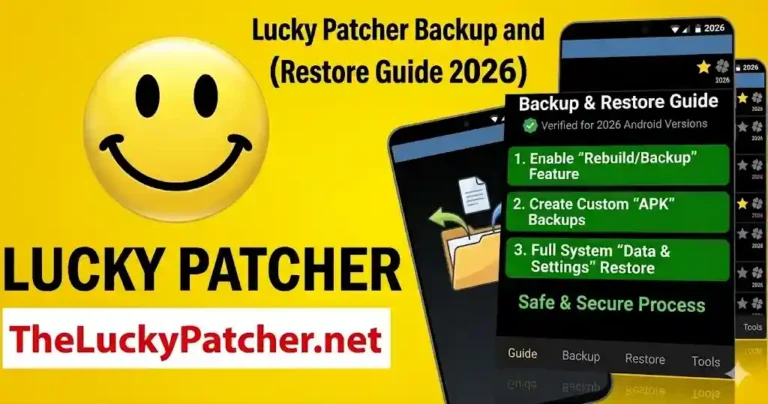
The Backup & Restore feature creates a complete copy of any installed app — saving the APK file to your phone’s storage so you can reinstall it at any time. This is especially useful before making any modifications to an app, before a major Android update, or before a factory reset.
The Restore function lets you reinstall any backed-up app directly from within Lucky Patcher — even if the app is no longer available on the Play Store or if you want to roll back to an older version after an update broke something you liked.
Real Example: Before applying any Lucky Patcher modification to your favorite game, you create a backup. If the modification causes the game to behave unexpectedly, you simply restore the original backup, and everything returns to normal within seconds.
Beginner Tip: Always create a backup BEFORE applying any modification. All backups are saved to /sdcard/LuckyPatcher/Backup/ — copy this folder to your PC for extra safety.
Feature 4 — Custom Patch
Custom Patch Feature — What It Does
Custom patches are pre-made modification files created by the Lucky Patcher community for specific apps and games. These patches are distributed as LPZIP files and can be applied to compatible apps to unlock specific features, remove specific ads, or make specific modifications that the standard Lucky Patcher tools cannot achieve automatically.
For beginners, custom patches are like ready-made recipes — someone else has already figured out exactly what needs to be modified in a specific app, and you simply apply the patch file to get the result. No technical knowledge is required to apply a custom patch.
Real Example: A community member creates a custom patch for a popular puzzle game that removes the timer limitation on free levels. You download the LPZIP file, apply it to the game using Lucky Patcher’s Custom Patch feature, and immediately enjoy unlimited time on every level.
Beginner Tip: Download custom patches only from trusted sources like the official Lucky Patcher website. Custom patches from unknown sources may not work correctly or could damage the target app.
Feature 5 — Rebuild & Install
Rebuild & Install Feature — What It Does
The Rebuild & Install feature is one of Lucky Patcher’s most powerful tools. It creates a brand new modified version of any installed app — a completely separate APK file that contains all your chosen modifications built directly into it. This modified APK can then be installed as a standalone app on your device.
For beginners, think of it this way — the standard Lucky Patcher modifications apply changes to an app temporarily. Rebuild & Install makes those changes permanent by creating an entirely new version of the app with the modifications baked in from the start.
Real Example:Your phone comes with several pre-installed apps you never use. They constantly run in the background, using up RAM and draining the Battery. Using Lucky Patcher’s Freeze feature, you turn off all these unwanted apps. Your phone becomes noticeably faster, and your Battery lasts longer.
Beginner Tip: Modified APKs created with Rebuild & Install are saved to /sdcard/LuckyPatcher/Modified/. You can share these files with other Android devices that have similar specifications.
Feature 6 — Move Apps to SD Card
Move to SD Card Feature — What It Does
This feature moves installed apps from your phone’s internal storage to your SD card — freeing up valuable internal memory on your device. This is particularly useful for Android phones with limited internal storage that fill up quickly with apps, games, and media files.
While Android has a built-in option to move some apps to the SD card, many apps block this option by default. Lucky Patcher’s Move to SD Card feature bypasses these restrictions and allows you to move almost any app — including ones that normally cannot be moved through standard Android settings.
Real Example: Your phone shows “Storage Almost Full” even though you have a large SD card. Several large games are blocking the Move to SD Card option. Lucky Patcher moves these games to your SD card, instantly freeing up several gigabytes of internal storage.
Beginner Tip: Apps moved to SD card may load slightly slower than apps on internal storage. Move large games and less frequently used apps to SD card first — keep your most-used apps on internal storage for best performance.
Feature 7 — Freeze Apps
Freeze Apps Feature — What It Does
Freeze Apps is a feature that disables an app completely without uninstalling it. A frozen app cannot run, cannot send notifications, cannot use battery power, and cannot consume mobile data — but it remains installed on your device and can be unfrozen at any time to restore full functionality.
This is especially useful for pre-installed system apps that you cannot uninstall but do not want running in the background. Freezing these apps frees up RAM, extends battery life, and reduces background data usage without the risk of permanently removing something your device might need.
Real Example: Your phone comes with several pre-installed apps you never use. They constantly run in the background using RAM and battery. Using Lucky Patcher’s Freeze feature, you disable all these unwanted apps. Your phone becomes noticeably faster, and your battery lasts longer.
Beginner Tip: Only freeze apps you are confident you do not need. Freezing system apps that Android depends on can cause your phone to behave unexpectedly. When in doubt — do not freeze it.
Feature 8 — App Info Analyzer
App Info Analyzer — What It Does
The App Info Analyzer gives you a complete technical breakdown of any installed app on your device. It shows you the app’s package name, version code, file size, installation date, permissions list, signature certificate, minimum Android version requirement, and all activities declared within the app.
For beginners, this feature is particularly useful for understanding exactly what permissions an app is using and why. It helps you make informed decisions about whether an app deserves the access it has been granted on your device.
Real Example: You want to know why a simple calculator app is consuming so much battery. The App Info Analyzer reveals it has 12 active permissions including location access and background refresh — information you would never find in the standard Android Settings app.
Root vs No Root — Which Features Work Without Root?
One of the most common questions beginners ask about Lucky Patcher is whether root access is required. The answer is — most features work without root, but some advanced features require root for full functionality.
| Feature | Without Root | With Root |
|---|---|---|
| Ad Removal | Works | Better results |
| Permission Manager | Works | Full control |
| Backup & Restore | APK backup | Full data backup |
| Custom Patch | Works | More patches |
| Rebuild & Install | Works | Works |
| Move to SD Card | Most apps | All apps |
| Freeze Apps | Limited | Full control |
| System App Removal | Not available | Full control |
Beginner Recommendation: Start using Lucky Patcher without root. Most features work perfectly on non-rooted devices. Only consider rooting if you specifically need features that require root access — and always research the risks before rooting your device.
Download Lucky Patcher v12.10.4 Free
Latest version — May 2026 — All Features Available — Android 4.0+⬇️ Download Free Now
Frequently Asked Questions
What is Lucky Patcher used for by beginners?
Beginners most commonly use Lucky Patcher to remove ads from apps and games, manage app permissions for better privacy, and create backups of important apps. These three features work without root access and provide immediate visible benefits on any Android device.
Which Lucky Patcher feature is best for beginners?
The Ad Removal feature is the best starting point for beginners. It is simple to use, requires no technical knowledge, produces immediate visible results, and works on most Android apps and games without root access.
Does Lucky Patcher work without root in 2026?
Yes. Most Lucky Patcher features, including ad removal, permission management, app backup, custom patches, and Rebuild & Install, work without root access in 2026. Root access is optional and only required for advanced features such as system app removal and complete app data backup.
Is Lucky Patcher free for beginners?
Yes. Lucky Patcher is completely free to download and use. All features described in this guide are available at no cost — no subscription, no in-app purchases, and no hidden charges of any kind.
How many features does Lucky Patcher have in 2026?
Lucky Patcher v12.10.4 in 2026 includes over 15 distinct features covering ad removal, permission management, app backup and restore, custom patches, APK rebuilding, app freezing, SD card management, app info analysis, and advanced Toolbox tools. New features and improvements are added with every version update.
What is the difference between Lucky Patcher features and the Toolbox?
Lucky Patcher’s main features are accessible by tapping individual apps in the app list. The Toolbox contains additional advanced tools that operate at a system level — such as restoring from backup, converting APKs to ZIP, and accessing Expert Mode. The main features are designed for beginners while the Toolbox is aimed at more advanced users.
Can I use all Lucky Patcher features on Samsung Galaxy phones?
Yes. Lucky Patcher works on all major Android phones including Samsung Galaxy, Xiaomi Redmi, Motorola Moto, OnePlus, and more. All core features work on non-rooted Samsung devices running Android 4.0 or above.