
How to Update Lucky Patcher Latest Version
Lucky Patcher is a helpful tool to manage apps in different ways. Like another app, you can update easily. When you upgrade from the old version to the new Lucky Patcher latest version, it can help to get new features and stability. This version works very smoothly. Lucky Patcher is not on the Google Play Store. The process of its update is different from other apps. Therefore, some little issues face this way.
Why You Should Upgrade Lucky Patcher
When users are using an old version of Lucky Patcher, they face different problems. The app may not open properly, some features may not work, or it may not match newer Android changes. A newer version may also include fixes for known issues and a better interface.
Problems Before Updating
Features After Updating
- App crashes.
- Patching fails.
- Some scripts are missing.
- Security risks increase.
- Bootloops can happen.
- Better Compatibility With New Apps
- Bug Fixes and Stability
- Support for New Android Versions
- New Patch Entries
- Android 14 & 15 Support
- Faster Performance
Before You Update — Do This First!
This is the most important section of this guide. Before you install the new version of Lucky Patcher, you must complete these steps to protect all your existing patches and backups. Skipping this part is the number one reason users lose their saved work during an update. Download Latest Version
Pre-Update Checklist
- Backup all your patched APK files to a safe location
- Copy your custom patches folder to PC or Google Drive
- Note down which apps you have patched and what patches were applied
- Make sure you have at least 500 MB free storage on your device
- Download the new Lucky Patcher APK from a trusted source
- Do NOT uninstall the old version before reading Method 1 or 2 below
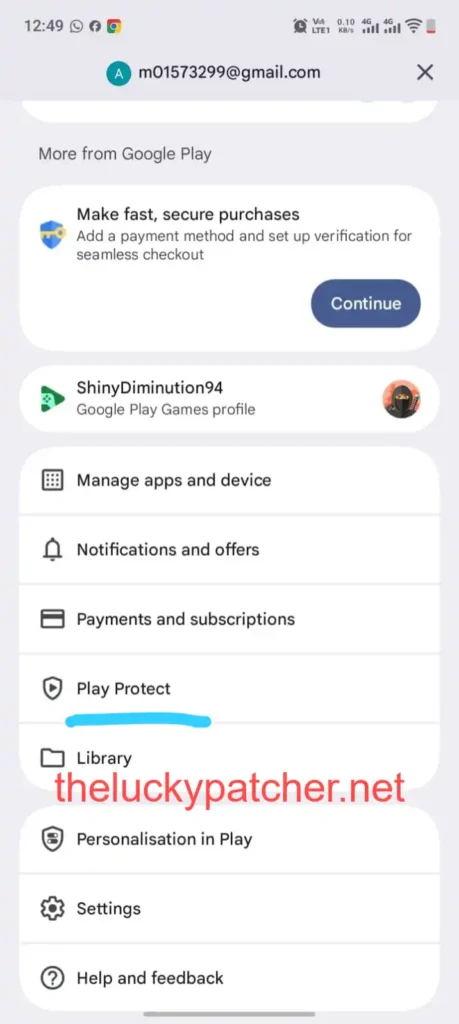
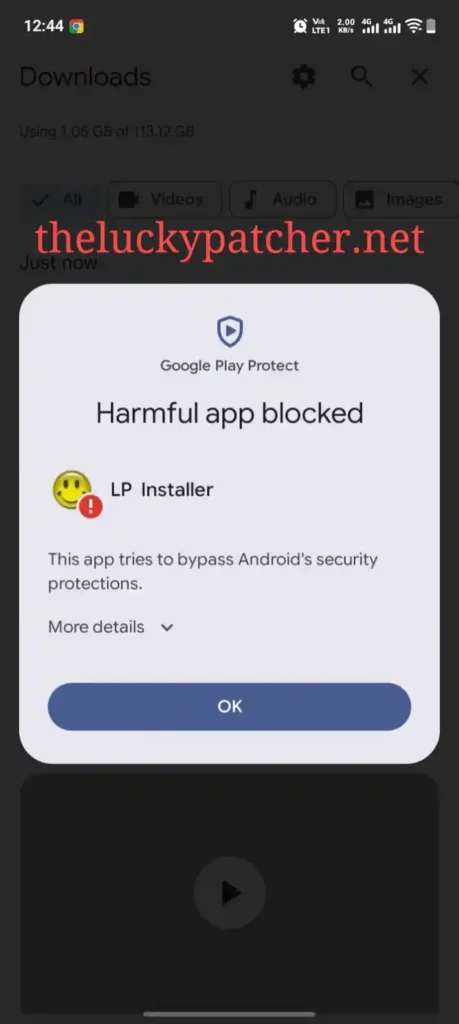
Critical Warning: Never uninstall Lucky Patcher and then install the new version without first backing up your custom patches folder at /sdcard/LuckyPatcher/CustomPatch/.Uninstalling Lucky Patcher does NOT automatically delete this folder — but some Android versions may clear it during the uninstall process. Always copy it to a safe location first.
Methods to Update Lucky Patcher
Method 1 — Upgrade to the Latest Version Using the Built-In Update Option (Easiest)
Lucky Patcher has a personal update checker that makes the process of upgrading very straightforward. Which is called a built-in option.
Method 2 — Manual Upgrade by Downloading the Latest APK
If the built-in update checker does not work, or if you want to make sure you are getting the latest version, you can upgrade manually by downloading the APK directly.
Method 3 — Upgrade a Previously Patched App After Lucky Patcher Update
If you have already patched an app using an older version of Lucky Patcher and want to upgrade that app without losing the patch, follow these steps.
How to Save Your Patches Before Updating
Your custom patches are stored in a specific folder on your Android device. Knowing where they are and how to back them up is the key to never losing your work during a Lucky Patcher update.
Custom Patch Location
All custom patches are stored at: /sdcard/LuckyPatcher/CustomPatch/
Backup Location
All app backups are stored at: /sdcard/LuckyPatcher/Backup/
Modified APKs Location
All modified APK files are stored at: /sdcard/LuckyPatcher/Modified/
To back up everything at once, copy the entire /sdcard/LuckyPatcher/ folder to your PC using a USB cable, or upload it to Google Drive. This single folder contains everything you need to restore your complete Lucky Patcher setup after any update.
Pro Tip: Connect your phone to your PC via USB cable, open File Explorer, navigate to your phone’s internal storage, and copy the entire LuckyPatcher folder to your desktop. It takes less than 2 minutes and gives you a complete backup of everything.
Final Word
Upgrading Lucky Patcher is not difficult, but it does need a careful approach. Download the latest APK, back up your important data, remove the old version if needed, and install the new one from a trusted source. Once installed, test the app to make sure everything works as expected.Keeping the app updated helps it run better and stay compatible with newer Android versions.
Frequently Asked Questions
Will I lose my patches if I update Lucky Patcher?
No, if you use Method 1 (update over existing install). Your patches, backups, and custom patch files are stored in /sdcard/LuckyPatcher/ and are not affected by an over-the-top update. For a clean install (Method 2), back up this folder first to preserve everything.
What is the latest version of Lucky Patcher in 2026?
The latest version of Lucky Patcher is v11.9.7, updated in May 2026. It is fully compatible with Android 14 and Android 15 and includes improved app detection and new custom patch support.