
Lucky Patcher Backup and Restore — How to Save Your Patches (Guide)
Lucky Patcher is a popular APK used by Android users who want complete control over their games and apps. One of the powerful features is Lucky Patcher backup and restore. It can help you save an app before reinstalling it or moving to another (mobile) device. This guide explains this feature so newcomers can understand it easily.
What Backup and Restore Means:
Backup means saving data and, at times, saving all copies of any app so you can use it later if needed. Restoring means bringing back that saved copy on the phone after changing devices. In simple terms, backup protects your app, and restore brings it back.
It can help our users when they change mobile phones or reinstall the Lucky Patcher app. Lucky Patcher Download
Why People Use Backup and Restore Feature
When:
- When saving all app data before uninstalling an app.
- To keep game progress safe.
- When an app transfers to another Android phone.
- To restore settings after a factory reset.
- To avoid downloading the same app again and again.
What Can You Back Up with a Lucky Patcher?
Lucky Patcher can save three things:
- The Original App (APK): Make a copy of the app before any changes. When a patch breaks something and you want a backup of your app data?
- The Patched App (Modified APK) If the app updates and your patch stops working, it’s time to bring backup and restore your data. You can reinstall this saved patched version anytime.
- In rooted Mobile Lucky Patcher saves your data and settings inside the app.
Where Are Backups Saved?
Lucky Patcher saves all backups on user phone storage:
Internal Storage → LuckyPatcher → backup
You can open this folder with any file manager app. Each app gets its own subfolder with the saved APK file inside. Here you can copy your lost data and apps.
Important: Always create a backup of the original app before applying any patch. Once you patch an app and it stops working correctly, you will need the original backup to restore it properly. Also Check: How to Use Lucky Patcher on Android
How to Restore Apps Using Lucky Patcher — Step by Step
Open Lucky Patcher
Launch Lucky Patcher If the app you want to restore is no longer installed, it will not appear in the main list — that is perfectly fine, the restore still works.
Go to the Toolbox Menu
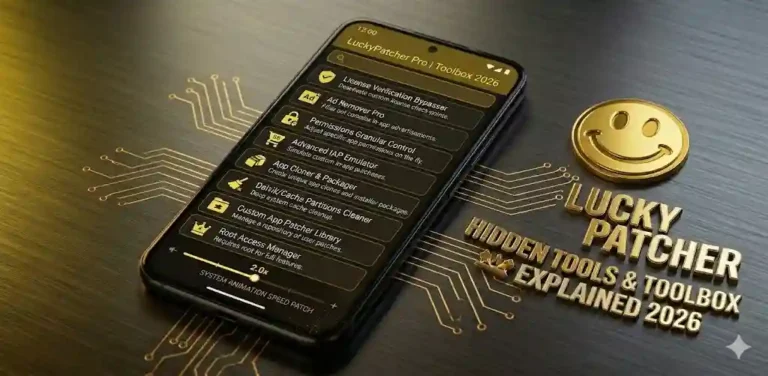
Tap the Toolbox icon at the bottom of the screen. This opens the main tools section of Lucky Patcher where backup and restore options are located.
Select Restore from Backup
Tap Restore from Backup. Lucky Patcher will scan the backup folder and show you a list of all available backup files on your device.
Choose the App to Restore
Find the app you want to restore in the list, then tap it. You will see the backup date and file size to help you identify the correct version.
Tap Restore and Confirm
Tap Restore and confirm the action. Lucky Patcher will reinstall the app from the backup. If a newer version is already installed, it will be replaced with the backup version.
Personal Experience:
I installed Lucky Patcher 10 years ago. I heard it is a very powerful tool for Android users who want complete control over their games and apps. I downloaded it and patched many apps and games with Lucky Patcher. One time, my mobile was thrown in water, and all data was deleted. But I reinstalled Lucky Patcher and backed up all our store in-app purchases. My experience with Lucky Patcher is so good, and I recommend it to Android users.
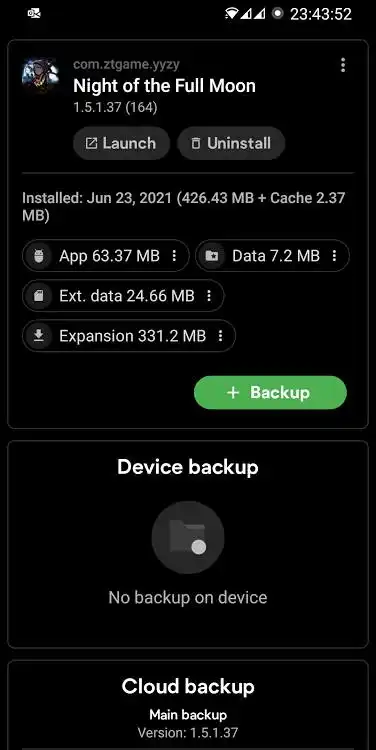
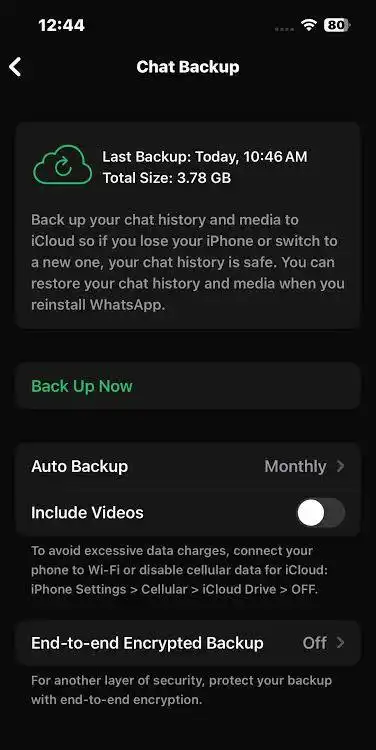
Screenshot Proves
Common Problems and Quick Fixes
Go to Permissions Settings and turn on Storage. Try again.
| Common Problems | Fixes |
|---|---|
| App not installed” error when restoring | Uninstall the current version of the app first. Then restore the backup. |
| Patched APK not working after restore | The app may have been updated before you restored it. Uninstall the updated version completely, then install the saved patched APK. |
| Not enough space error | Please clean already existing data in app storage. |
Lucky Patcher Backup File Location
All backup files created by Lucky Patcher are stored in a specific folder on your Android device. Knowing this location is important for managing, copying, and transferring your backups.
Final Word
Lucky Patcher’s backup feature is very helpful and very simple. Once you know Lucky Patcher, backup and restore can be useful when you want to protect app data, keep game progress safe, or move apps to another device. The most important habit is to save the patched APK instantly after it works—and keep a copy somewhere safe outside your phone. Lucky Patcher No Root Guide
Frequently Asked Questions
Q: Does Lucky Patcher backup require root?
No. The basic backup feature in Lucky Patcher works without root. It backs up the APK file of any installed app. However, for backing up full app data including game progress, root access is required on most devices.
Q: Where are Lucky Patcher backup files stored?
Lucky Patcher backup files are stored in /sdcard/LuckyPatcher/Backup/ on your Android device. You can access this folder using any file manager app and copy the files to your PC or cloud storage.


I enjoy what you guys are usually up too. This sort of clever work and exposure!
Keep up the awesome works guys I’ve incorporated you guys to my own blogroll.
I just could not leave your web site prior to suggesting that I actually loved the usual info a person provide in your visitors?
Is going to be back frequently to check out new posts
Pretty nice post. I just stumbled upon your weblog and wanted
to say that I’ve truly enjoyed surfing around your blog posts.
After all I’ll be subscribing to your rss feed and I hope you write again soon!
Thanks for finally writing about > Lucky Patcher Backup and Restore How to Save Your Data 2026 < Loved it!
You have made some decent points there. I checked on the net to learn more about
the issue and found most people will go along with your views on this
site.
I think the admin of this web page is truly working hard in favor
of his site, for the reason that here every stuff
is quality based stuff.
Remarkable! Its genuinely awesome paragraph, I have got much clear idea
regarding from this post.
Hey there! This post couldn’t be written any better! Reading this post reminds me of
my good old room mate! He always kept talking about this.
I will forward this page to him. Pretty sure he will have a good read.
Many thanks for sharing!