How to Manage App Permissions in Lucky Patcher
If you use Android, does a simple photo editor need access to your contacts? You have seen this. Did you know that the average Android app requests 6 to 10 permissions? Many apps ask for unnecessary permissions. A 2025 report by Norton found that 65% of popular free apps collect more data than they need. This is a big, serious privacy risk most users ignored.
The good news is that Lucky Patcher gives you full control over all unnecessary permissions—you can check which permissions each app has active and which are nonactive. You can turn active permissions to non-active with just a few taps, without uninstalling a single game or app. I have tested Lucky Patcher for the Android customization tool for over 6 years.
In this guide I will explain exactly how to manage app permissions in Lucky Patcher, step by step.
What Are App Permissions in Android?
App permissions are like keys. When you install an app, you give it keys to enter different parts of your phone.
An analysis of popular messaging apps on Android in 2026 found that Telegram requests 71 permissions total — including 25 classified as unnecessary permissions that give deep access to personal data.
Most critical Android permissions are:
- Location
- Camera
- Microphone
- Contacts
- SMS
- Photos and videos
- Phone
- Music and audio
Active vs Non-Active Permissions—What They Mean
When you open the permission list in Lucky Patcher Understanding the difference between active and non-active permissions is key before you start managing app permissions in Lucky Patcher:
Active Permissions
- Permission is currently enabled.
- The app can access this feature
- Shown in green in Lucky Patcher
- App functions normally with this access.
- Default state after installation
- Can be changed to non-active anytime
Non-active Permissions
- Permission is currently disabled
- App cannot access this feature
- Shown in Red in Lucky Patcher
- App runs without this specific access.
- Must be set manually by user
- Can be re-enabled anytime
Why Should You Manage App Permissions?
There are three main reasons:
1. Protect Your Privacy:
2. Save Battery
3. Better Control Over Apps
How to Manage App Permissions in Lucky Patcher — Step by Step
Step_01: Open Lucky Patcher APK
Open Lucky Patcher v12.10.4 on your Android device after installation. A large screen will open. Wait for the app list to upload. It takes 20 to 30 seconds.It depends on your mobile speed.
Step_02: Find the App You Want to change permissions
Scroll the app list and use the search option to find the app you want to change permissions for. Tap on the Target app and open its menu option.
Step_03: Open Change Permissions
After opening the menu, tap Change and Manage Permissions depending on your Lucky Patcher version. A full list of all active and nonactive permissions for that specific app will appear on your screen.
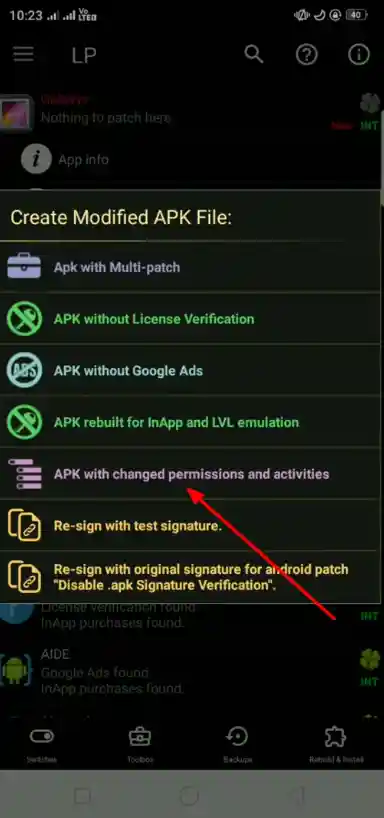
Step_04: Review Each Permission
Read the complete list of permissions carefully. Turning unnecessary permissions nonactive is the right move. Common permissions include Camera, Location (Precise and Approximate), Contacts, Microphone, Call History, SMS, Storage, and Background Activity. Turning unnecessary permissions non-active is the right move.
Step_05: Tap a Permission to Toggle Active/Non-Active
Tap any permission to switch it from active (green) to non-active (red), or from non-active back to active. The change is instant and visible immediately in the permission list. You can toggle as many permissions as you need in one session.
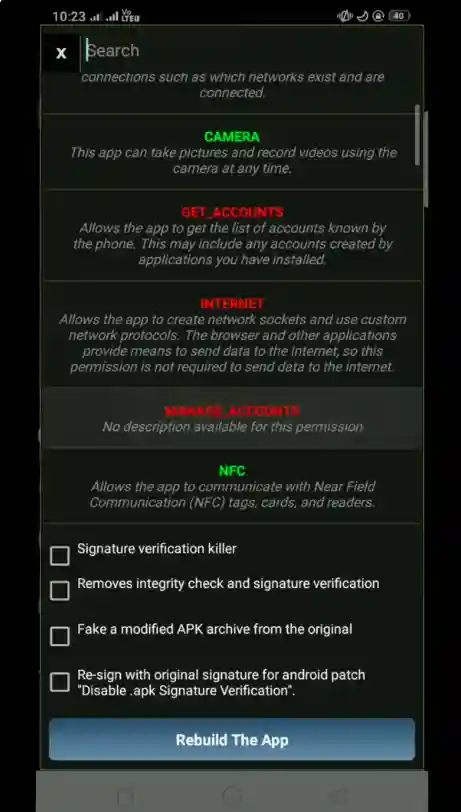
Step_06: Tap Apply (Reboot) to Save Changes
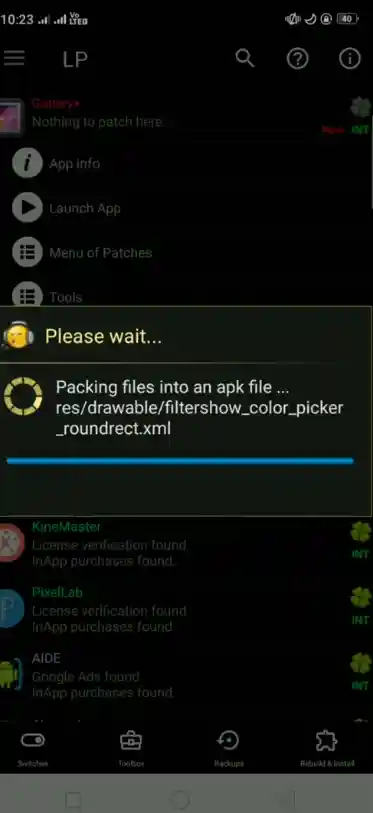
After making all your permission changes, tap the Apply (Reboot) button at the bottom of the screen. Your device will restart to apply the new permission settings. Once it restarts, the changes are active — the app will no longer have access to the permissions you disabled.
When to Use Active and When to Use Nonactive:
Not every permission needs to be disabled. Here is a simple guide for making the right decision. Calendar, recording, location, and storage are permissions that are commonly misused by mobile applications.
| Permission | Recommendation |
| Location — app needs it | Keep Active |
| Location — app does not use maps | Set Nonactive |
| Camera — photo app | Keep Active |
| Camera — game or utility | Set Nonactive |
| Contacts — messaging app | Keep Active |
| Contacts — game | Set Nonactive |
| Microphone — voice app | Keep Active |
| Microphone — puzzle game | Set Nonactive |
| Background Refresh — any app | Usually Nonactive |
Final Word
This guide showed you how to understand, change, and fix permission issues. Also read our guide on How to Backup Apps in Lucky Patcher before changing any settings. Learning to manage app permissions in Lucky Patcher is one of the most practical things any Android user can do in 2026.
You don’t need to be an expert; just start with one app. Review all of an app’s permissions and enable the necessary ones while disable the unnecessary ones. It’s easy to understand: Active means on, and nonactive means off.